
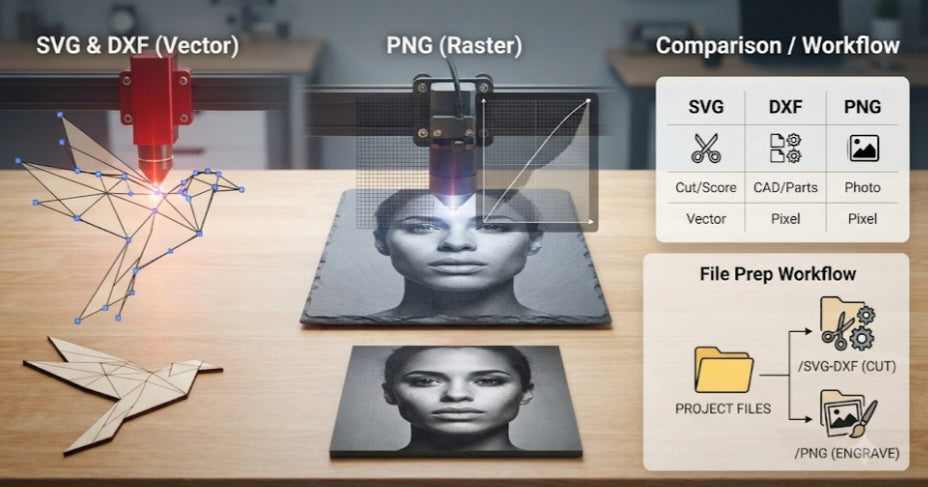
Choosing the right file format is one of the biggest hurdles when operating a laser cutter or engraver. Send the wrong file type, and your machine won't know whether to cut a shape or turn it into a blurry mess.
To get crisp lines, accurate dimensions, and flawless photo engravings, you need to understand the difference between vector and raster formats. Here is a breakdown of SVG, DXF, and PNG, and when you should use each one for your projects.
SVG (Scalable Vector Graphics)
Best for:
Most general laser cutting, scoring, vector engraving, and multi-color/multi-layer maker projects.
What it is:
SVG is a web-friendly vector format that uses mathematical formulas (points, lines, and curves) rather than pixels. This means you can scale the file up or down infinitely without losing any quality.
Why Use SVG?
Perfect for Cutting & Scoring: Laser software reads vector paths directly to know exactly where to trace the laser head.
Layer and Color Mapping:
You can easily separate elements by color or layer in an SVG (e.g., assigning red lines to cut and black lines to engrave).
Great for Sharp Text & Logos:
Fonts and geometric designs stay perfectly smooth and never pixelate.
DXF (Drawing Exchange Format)
Best for:
CAD-designed mechanical parts, precise structural components, and sharing files with traditional machine shops.
What it is:
Developed by Autodesk, DXF is the industrial standard for CAD software (like Fusion 360, AutoCAD, or SolidWorks). Like SVG, it is a vector format, but it is built specifically for strict engineering measurements.
Why Use DXF?
Absolute Dimensional Accuracy:
If your project requires exact mechanical tolerances where a line must measure precisely down to the millimeter, DXF is the most trusted format in the manufacturing world.
Standard for CNC & Heavy Machinery:
Older industrial systems and heavy-duty CNC setups often prefer or exclusively accept DXF over web-based vector formats.
PNG (Portable Network Graphics)
Best for:
Engraving detailed photographs, complex grayscale gradients, and realistic 3D shading.
What it is:
PNG is a raster format made up of a grid of individual pixels. Unlike vectors, a PNG does not have cut lines for a laser to follow natively.
Why Use PNG?
Ideal for Photo Etching:
If you want to burn a realistic photograph onto wood, leather, or slate, a high-resolution PNG allows your laser software to apply dithering and grayscale power variations.
Lossless Quality:
PNG supports transparent backgrounds and avoids the compression artifacts (random background noise) that formats like JPEGs often cause.
Note: Never use a PNG to cut out a shape unless you use a trace tool in your laser software to generate a vector cutting path around it first.
Final Takeaway
Stick to SVG or DXF for anything you need the laser to cut or outline.
Use PNG when you want to engrave a photograph or detailed artwork onto a surface.
Convert Text to Outlines/Paths:
Always remind your readers to convert their text to curves or paths before exporting an SVG or DXF. If they don’t, the laser software might substitute a missing font and ruin the layout.
Watch Out for Duplicate Lines:
When designing vectors, overlapping lines can cause a laser cutter to trace the exact same path twice, leading to burned edges or wasted time.
Prep Your PNGs:
If using a PNG for photo engraving, advise your readers to boost the contrast and remove background noise in an editor beforehand so the laser doesn't accidentally engrave unwanted background specs.
Optimizing Your Workflow: File Preparation Checklist
To save hours of trial and error in the workshop, streamline your production workflow by organizing your files right from the start. Keep a dedicated master folder for every project featuring separate sub-folders labeled clearly for vectors (/SVG-DXF/) and rasters,ensuring you never accidentally send a pixelated image to do a cutting job.


