
When setting up a file for laser engraving or cutting, choosing the right file format is just as important as dialing in your power and speed settings.
Different laser software programs (like LightBurn, RDWorks, LaserGRBL, or proprietary manufacturer software) handle file types differently depending on whether you are vector cutting, vector engraving, or raster engraving.
Vector Formats (Best for Cutting and Vector Engraving)
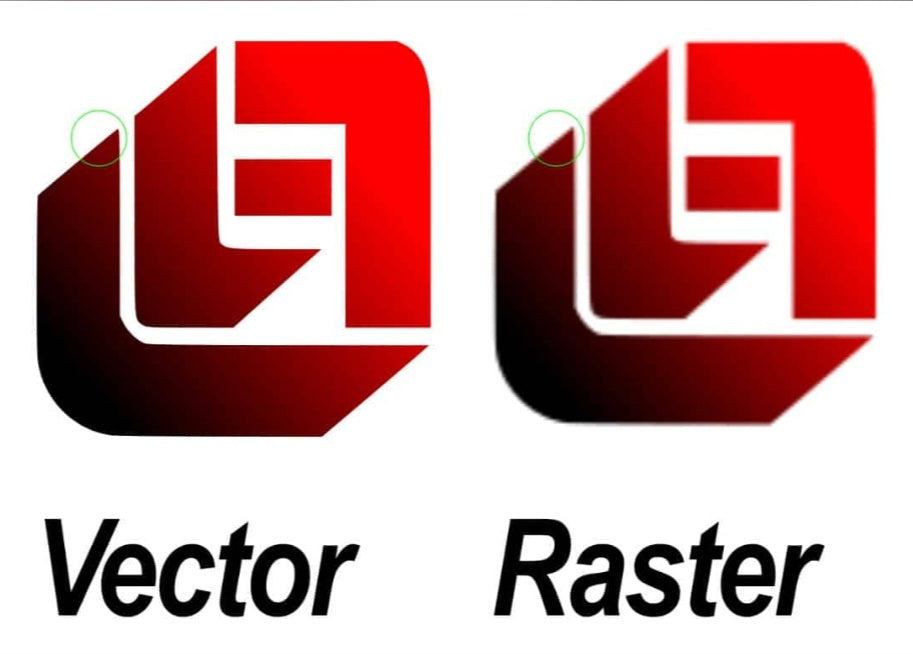
Vector graphics are made of mathematical paths, lines, and curves rather than pixels. This means they can be scaled infinitely without losing quality, making them the gold standard for laser cutting and clean line engraving.
SVG (Scalable Vector Graphics):
The Verdict:
The absolute king of laser cutting formats.
Why use it:
SVGs are universally supported by almost all modern laser software (including LightBurn and LaserGRBL). They maintain crisp lines, support scaling, and handle multiple layers and colors cleanly.
DXF (Drawing Exchange Format):
The Verdict:
Essential for CAD users and technical drawings.
Why use it:
Originally created for AutoCAD, DXF files are widely used for precise mechanical parts, complex woodwork layouts, and architectural models. Most laser controllers accept DXFs natively. (Note: Make sure your software scales DXF files correctly, as unit mismatches between inches and millimeters can occasionally happen).
AI (Adobe Illustrator Artwork):
The Verdict:
Great if you design in the Adobe ecosystem.
Why use it:
If you create your artwork directly in Adobe Illustrator, software like LightBurn can import .ai files seamlessly. However, if sharing files with others, converting them to SVG is often safer.
PDF (Portable Document Format):
The Verdict:
Versatile and widely accessible.
Why use it:
PDFs can contain both vector lines and raster images. Many vector design programs export clean PDF vectors that laser software can interpret easily. Just ensure the PDF is saved with vector data intact rather than flattened into a bitmap.
Raster Formats (Best for Photo Engraving and Grayscale)
Raster images are made up of a grid of individual pixels (dots). Unlike vectors, they have a fixed resolution. Raster formats are used when you want to engrave photographic details, shading, or complex gradients onto materials like wood, leather, or tile.
PNG (Portable Network Graphics):
The Verdict:
The best raster format for laser engraving.
Why use it:
PNGs use lossless compression, meaning no image data is degraded. They also support transparent backgrounds, which makes it easy to isolate your design from its backdrop before burning.
JPG / JPEG:
The Verdict:
Widely used, but use with caution.
Why use it:
JPEGs are fine for high-resolution photographs, but they use lossy compression that can introduce fuzzy artifacts and unwanted background noise around edges. If possible, convert JPEGs to PNG before processing.
BMP (Bitmap):
The Verdict:
Uncompressed and massive, but reliable.
Why use it:
Some older laser control boards prefer uncompressed BMP files because every single pixel's data is explicitly mapped out. However, file sizes can be very large compared to PNGs.
Pro Tip: Know Your Software's Preferences
Before starting a large design project, always check what your specific laser software imports best. While programs like LightBurn accept an enormous range of file types (including SVG, DXF, AI, PDF, PNG, JPG, and BMP), simpler firmware-tied apps may only accept a strict subset like G-code, SVG, or basic BMP files.
When in doubt, SVG is your safest bet for vectors, and PNG is your best bet for photos!


